
Image background removal
Remove Background
Create a clean cutout in seconds. The tool removes the existing backdrop; it does not generate a new scene behind the subject.
Use This Template →Opens the existing KiwiMotion Studio workflow with this template selected.


What this template does
Remove Background separates the foreground subject from its surrounding scene. The real example shows the source photograph alongside the resulting cutout, making the edge treatment and transparent-background use case clear.
How to use it
- Choose a photo with a distinct foreground person or object.
- Open the Remove Background workflow and upload the original.
- Generate the cutout, then inspect hair, fine edges and gaps before downloading.
What to expect
The tool removes the existing backdrop; it does not generate a new scene behind the subject.
Tips for better results
- Contrast between subject and background usually helps edge separation.
- Avoid heavy motion blur around hair or thin objects.
- Check the cutout over both light and dark backgrounds before reuse.
Workflow and model
Image background removal · Background Remover
Can I use the cutout on a different background?
Yes. Save the generated cutout and place it over another background in your chosen editor.
Related Templates
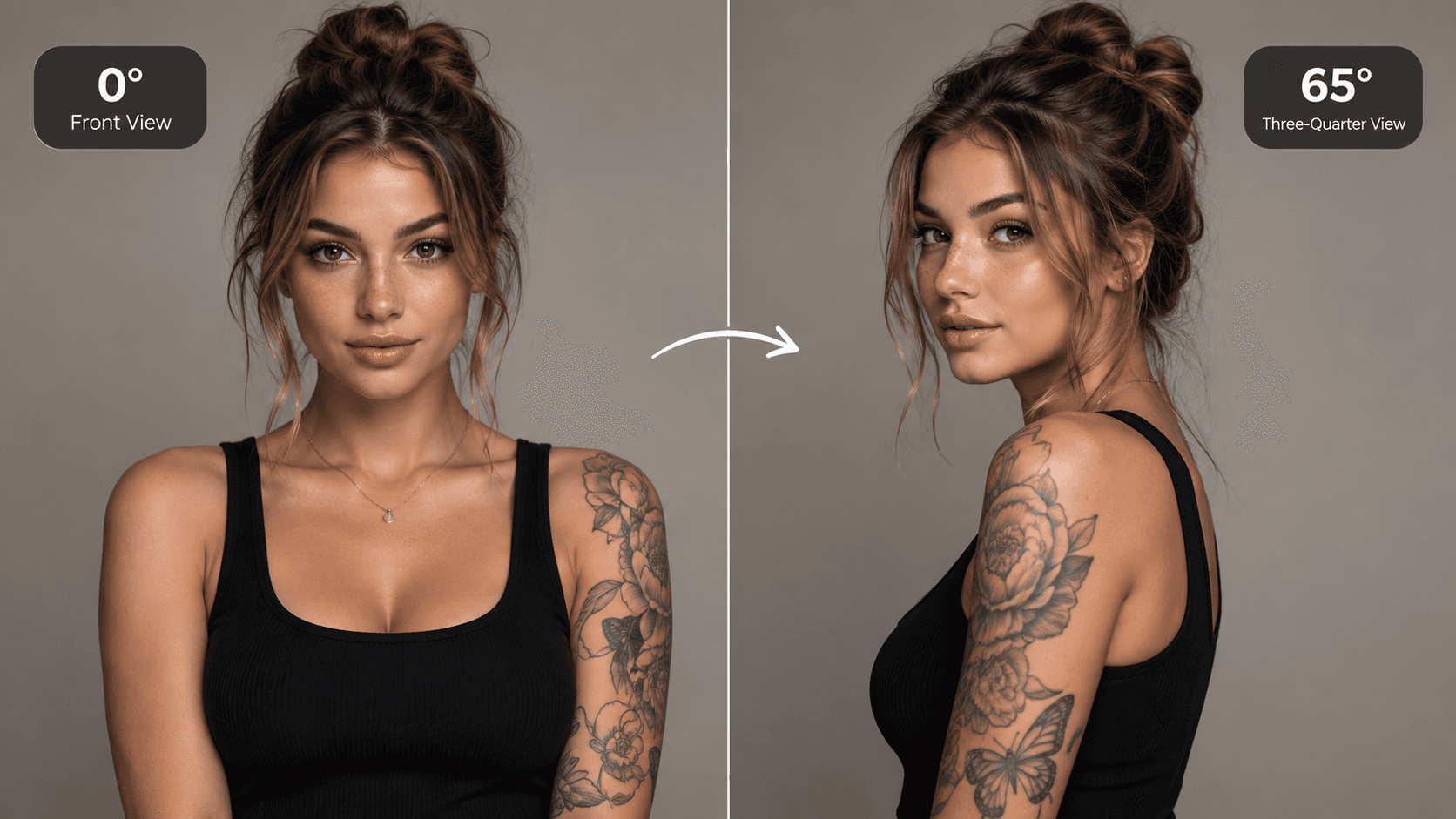
AI Camera Angle
See your image from a new perspective.
Image-to-image · viewpoint edit · Qwen Image Edit
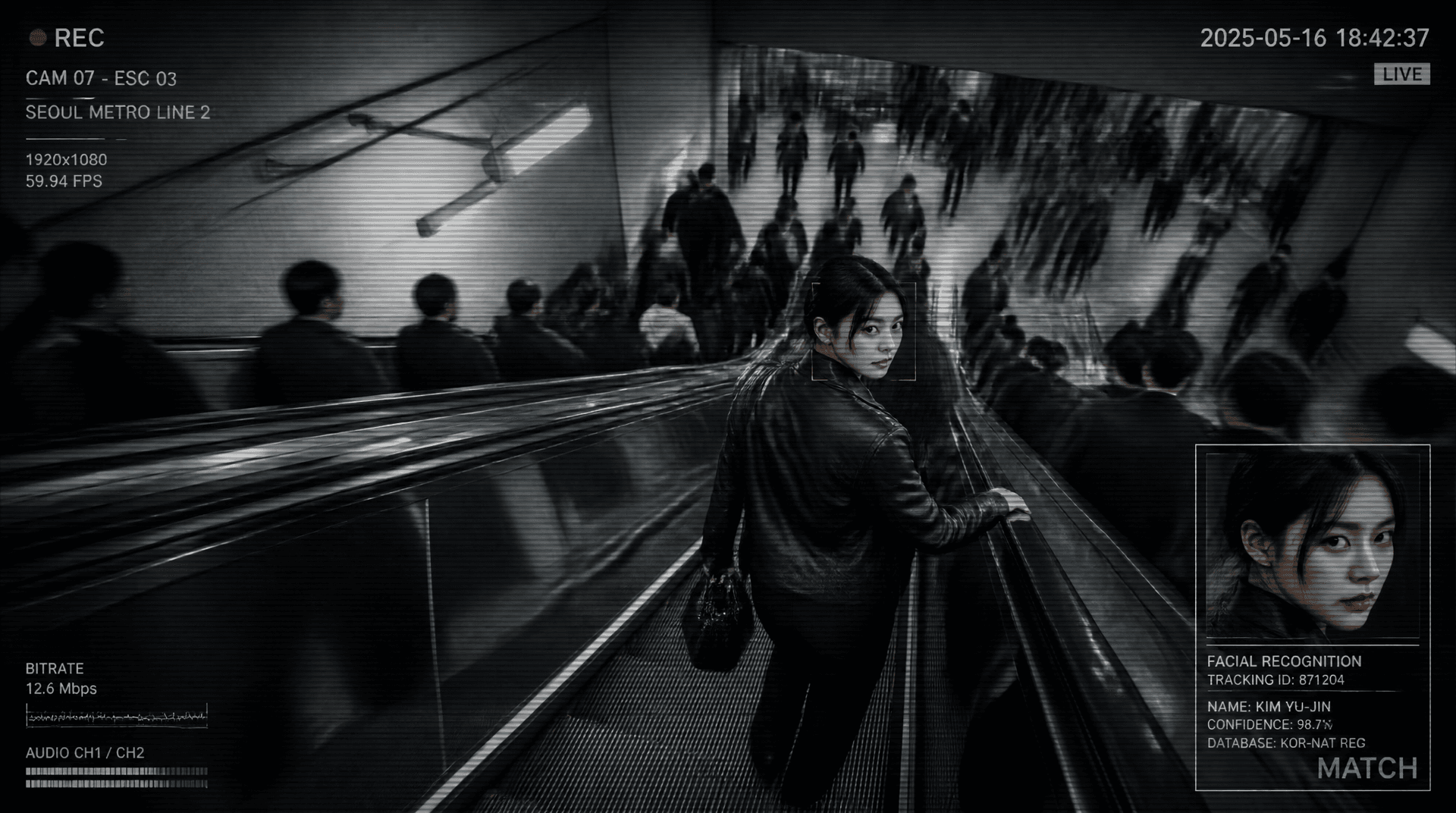
Metro Surveillance
Turn your photo into a cinematic CCTV thriller.
Reference-image scene transformation · GPT Image 2
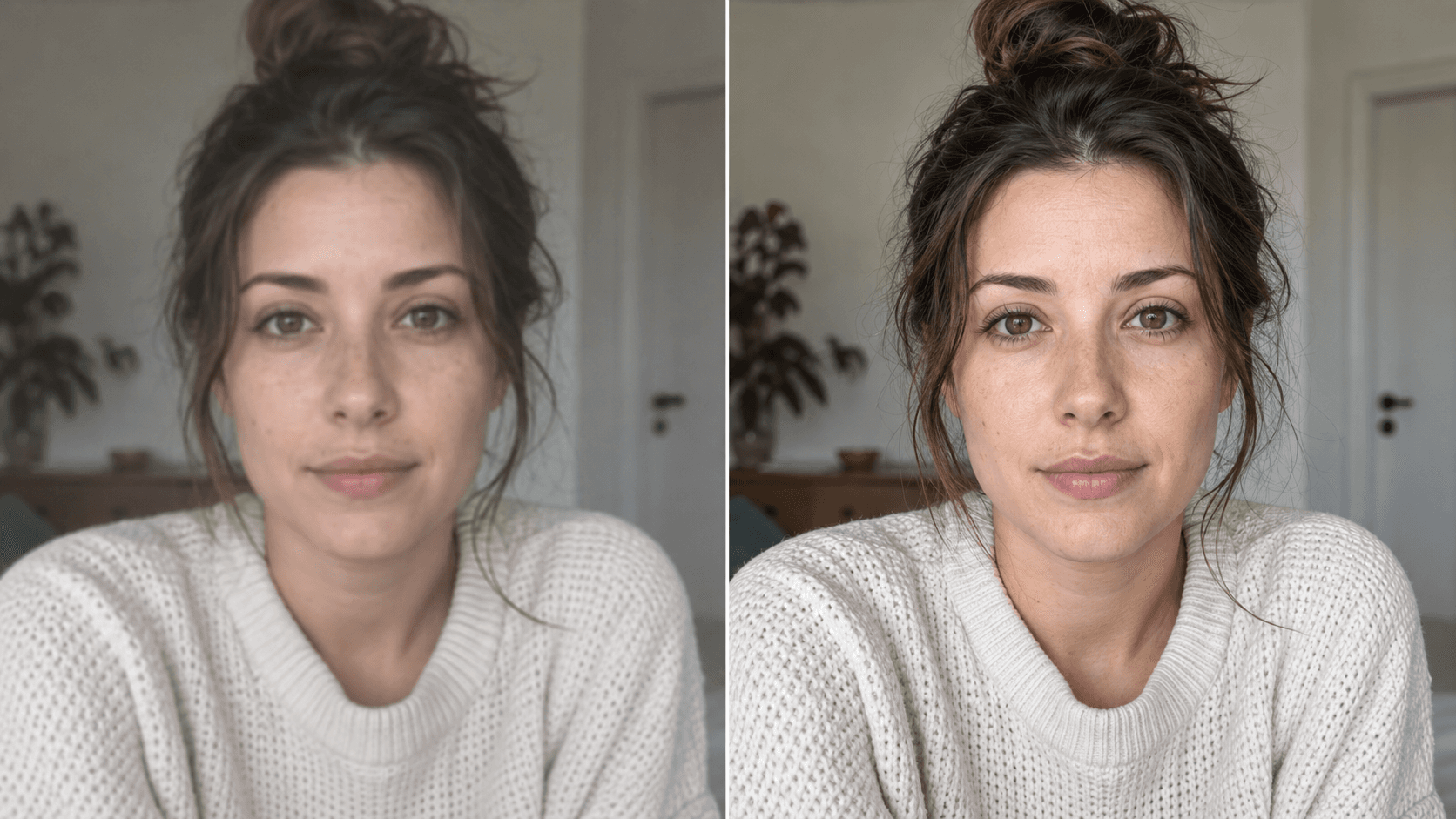
Upscale
Enhance your photo with natural, lifelike detail.
Reference-image enhancement · GPT Image 2

Camera Roll
Turn one photo into a day of casual camera-roll moments.
Reference-image multi-scene creation · GPT Image 2