Model guide
GPT Image 2 AI Image Generator
Create images from text or transform existing visuals with GPT Image 2 in KiwiMotion. Explore real results, reference-guided workflows, published prompts, and the settings available in Create Image.
Made with GPT Image 2
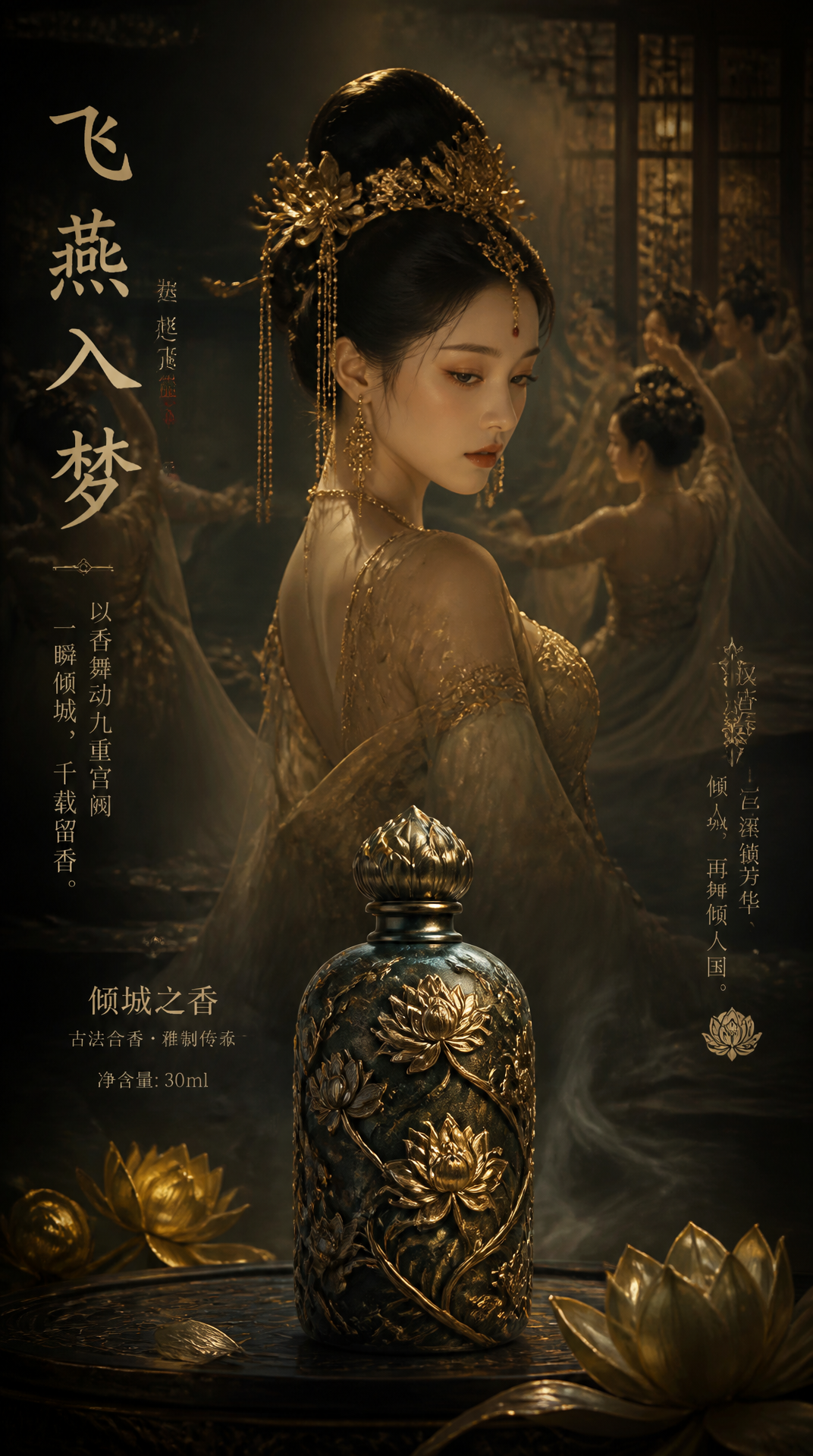
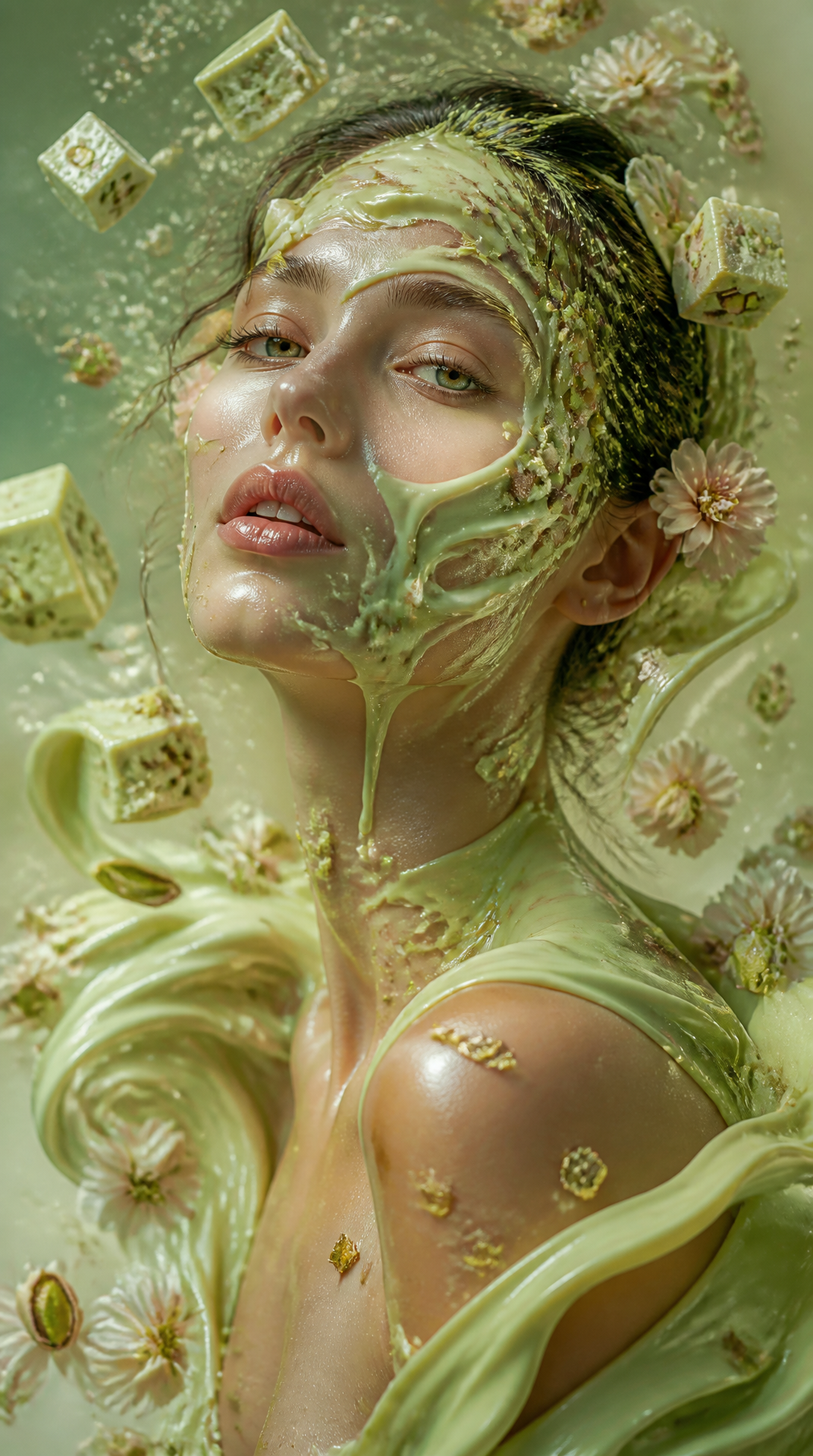
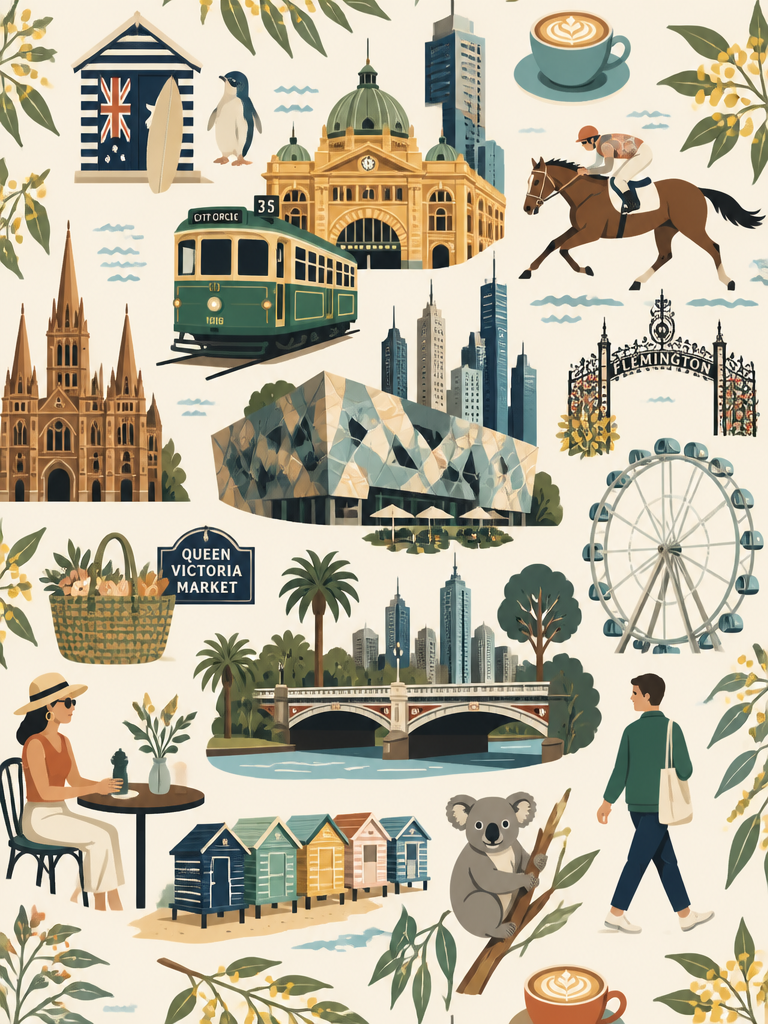
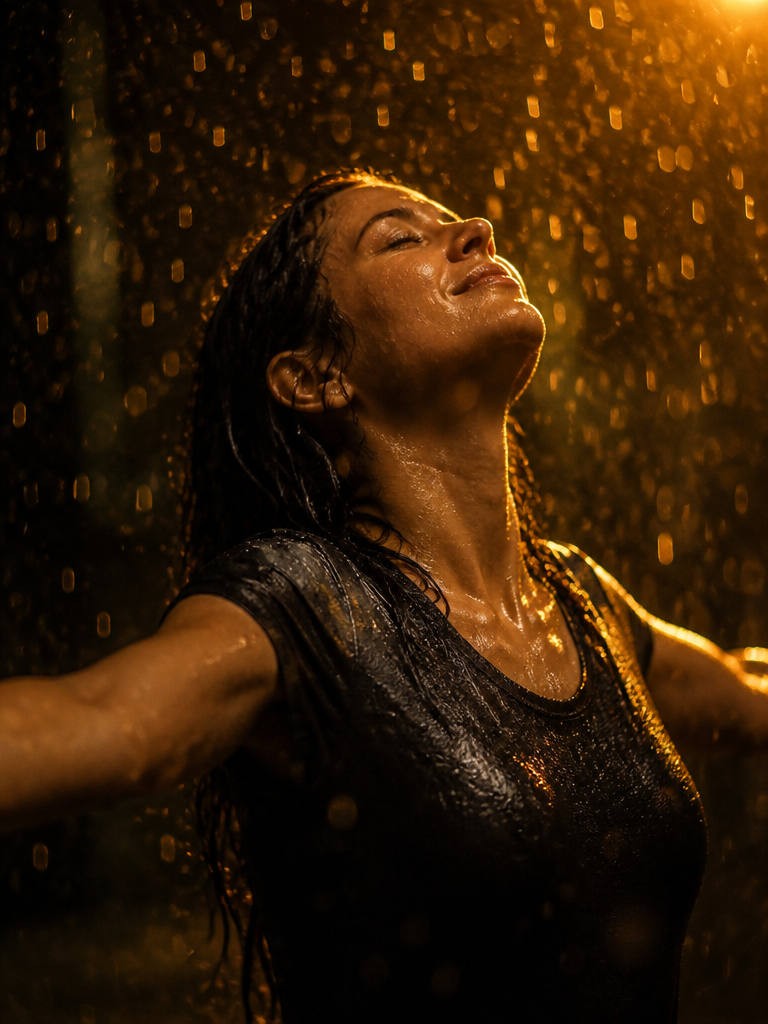
Real KiwiMotion results. Open any image to see its published prompt.
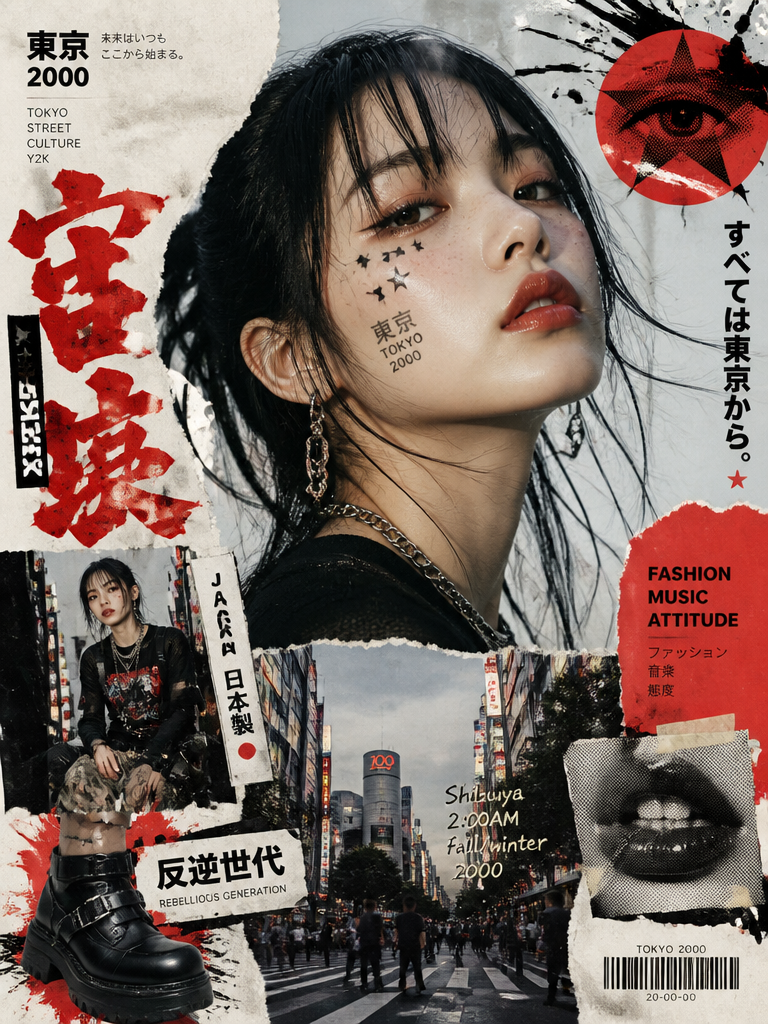
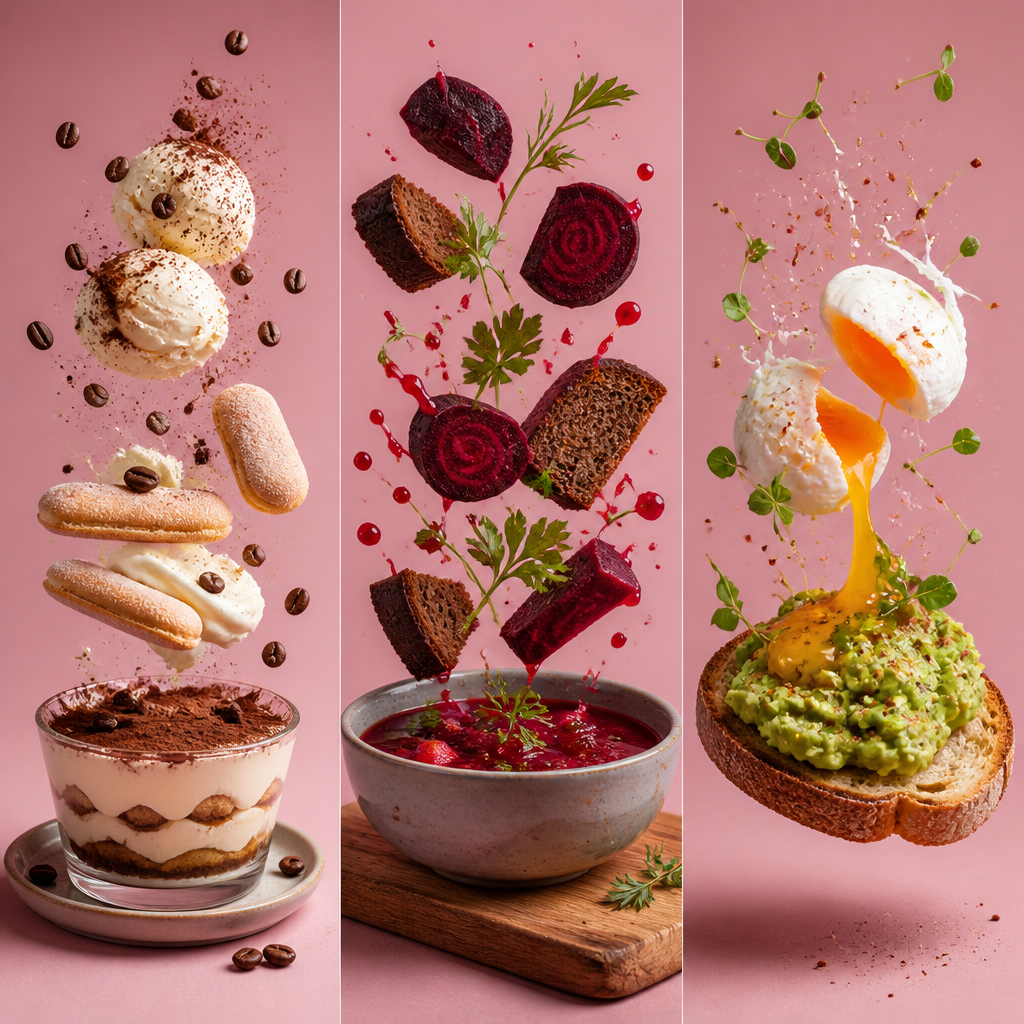
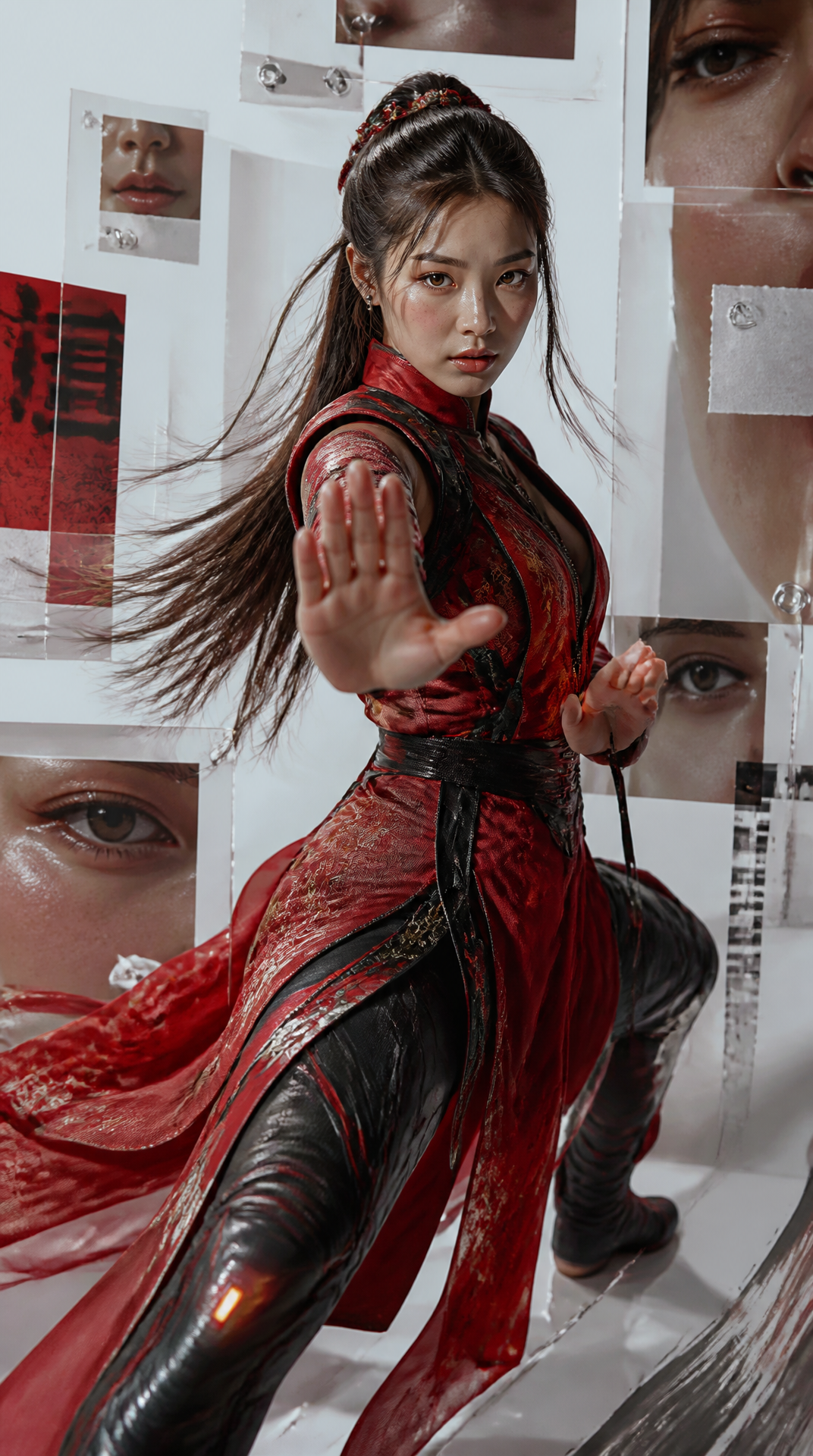
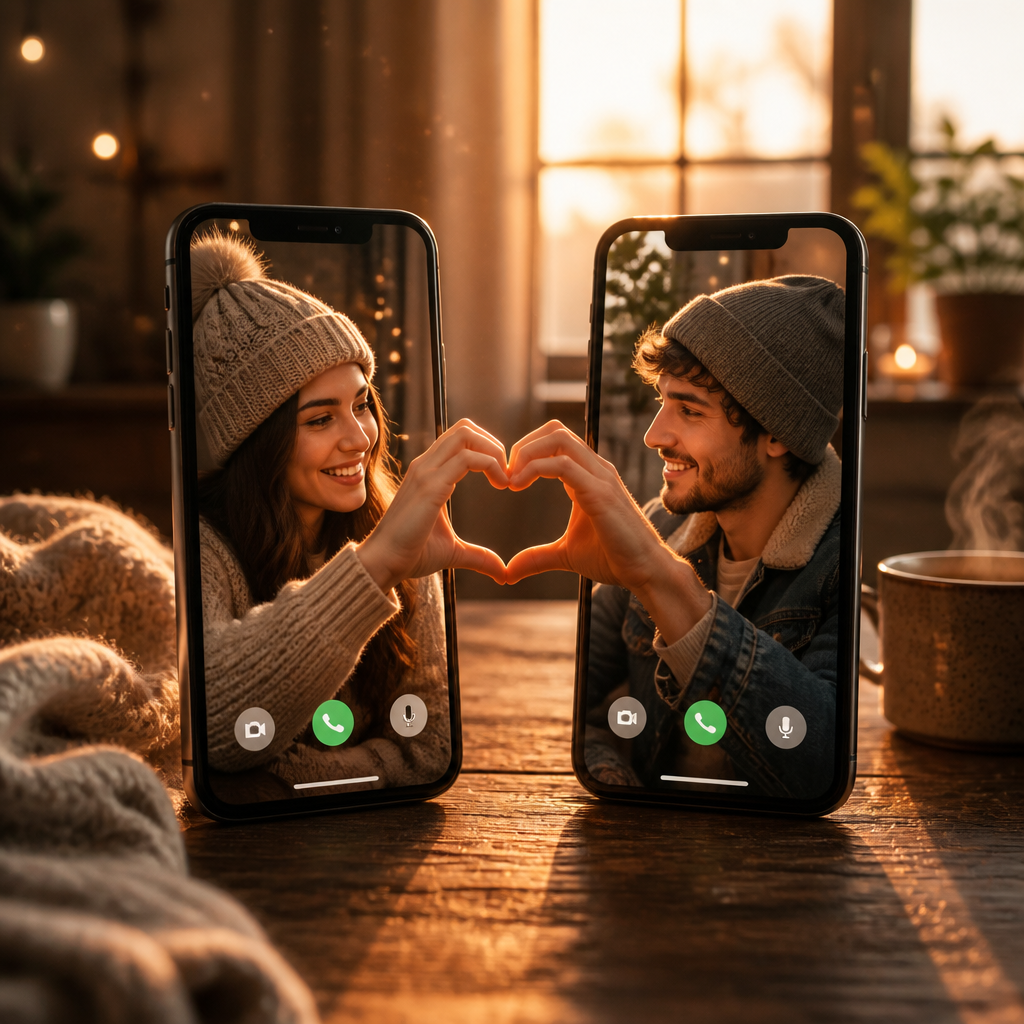
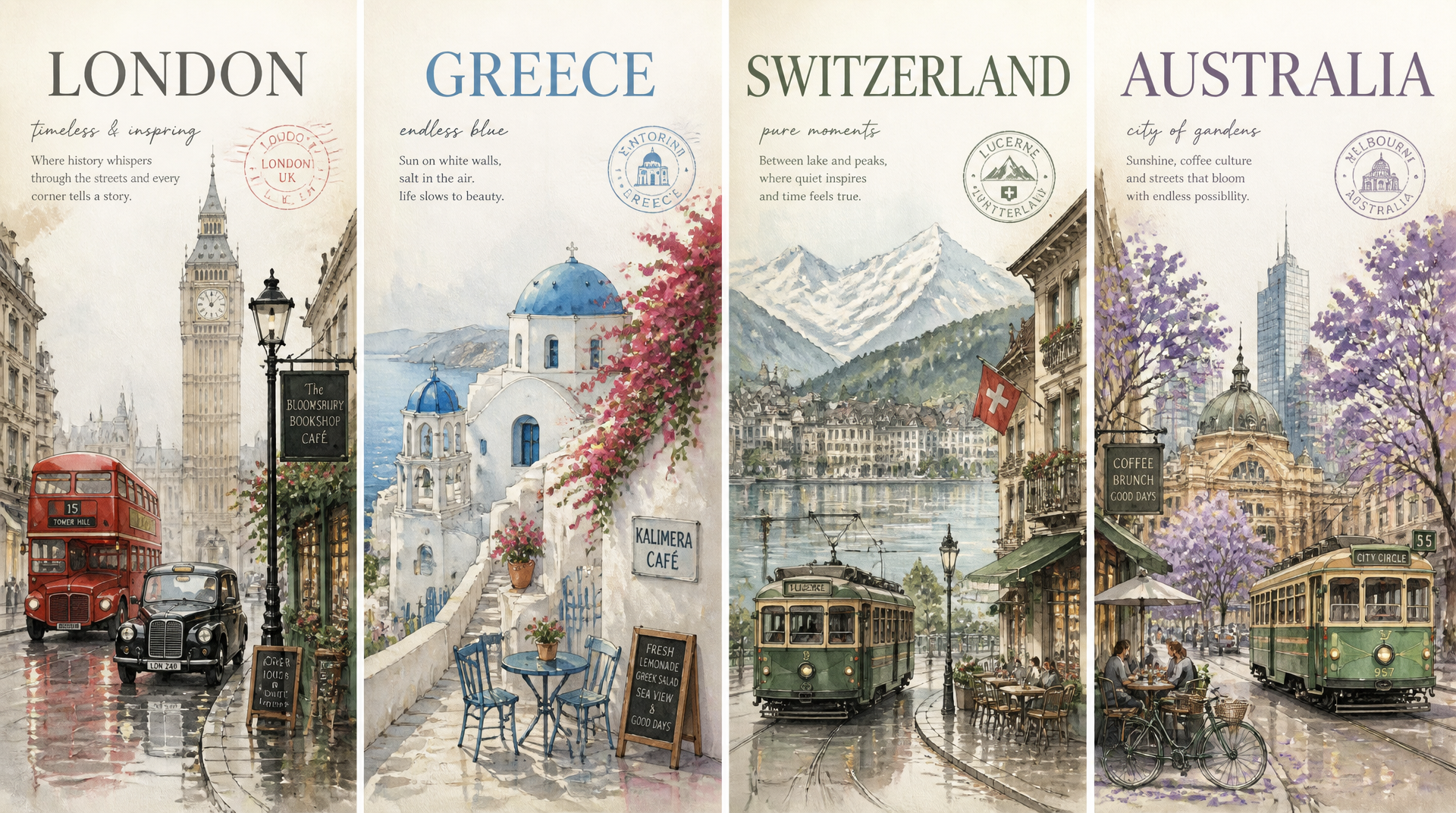
What Is GPT Image 2?
GPT Image 2 is OpenAI’s model for high-quality image generation and editing from text and image inputs. It supports flexible output sizes and high-fidelity image inputs, so you can create a new visual or work from an existing one.
In KiwiMotion, use Text to Image for a written idea or Image to Image to provide references. Describe the subject, composition, lighting, materials, typography, and what should change or stay visually consistent.
Explore the Possibilities
01 / GPT Image 2 capability
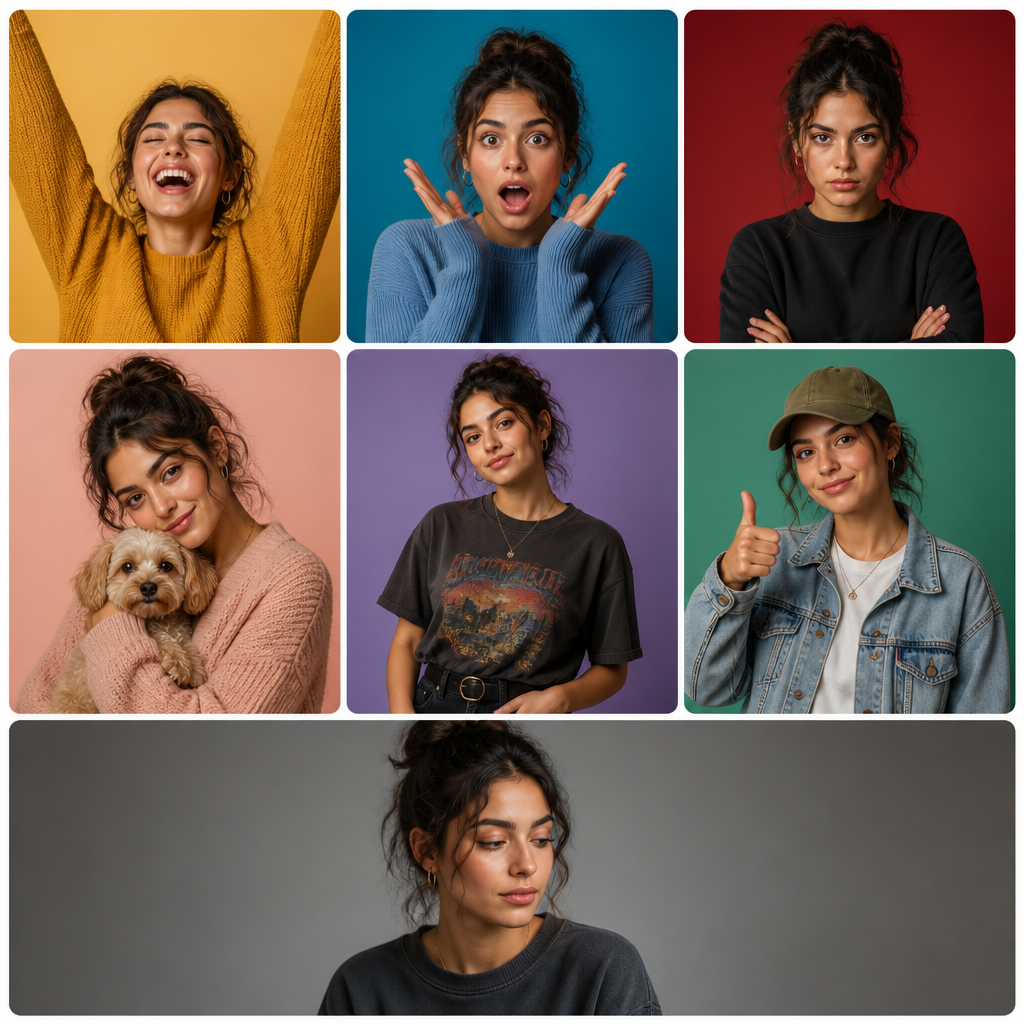
Generate detailed images from a prompt
Build a scene from scratch, including its subject, arrangement, lighting, and visual style. This published portrait grid shows how one prompt can direct several expressions in a single composition.
Example prompt
“Create a polished multi-panel portrait composition with **seven individual character tiles**, separated by narrow white spacing and enclosed by a subtle white outer frame. Giv…”
View Full Prompt →
02 / GPT Image 2 capability
Edit with image references
Create from Text or Work from References
Both paths live in KiwiMotion’s Create Image workspace; choose the one that fits your source material.
Text to Image
Describe a new scene
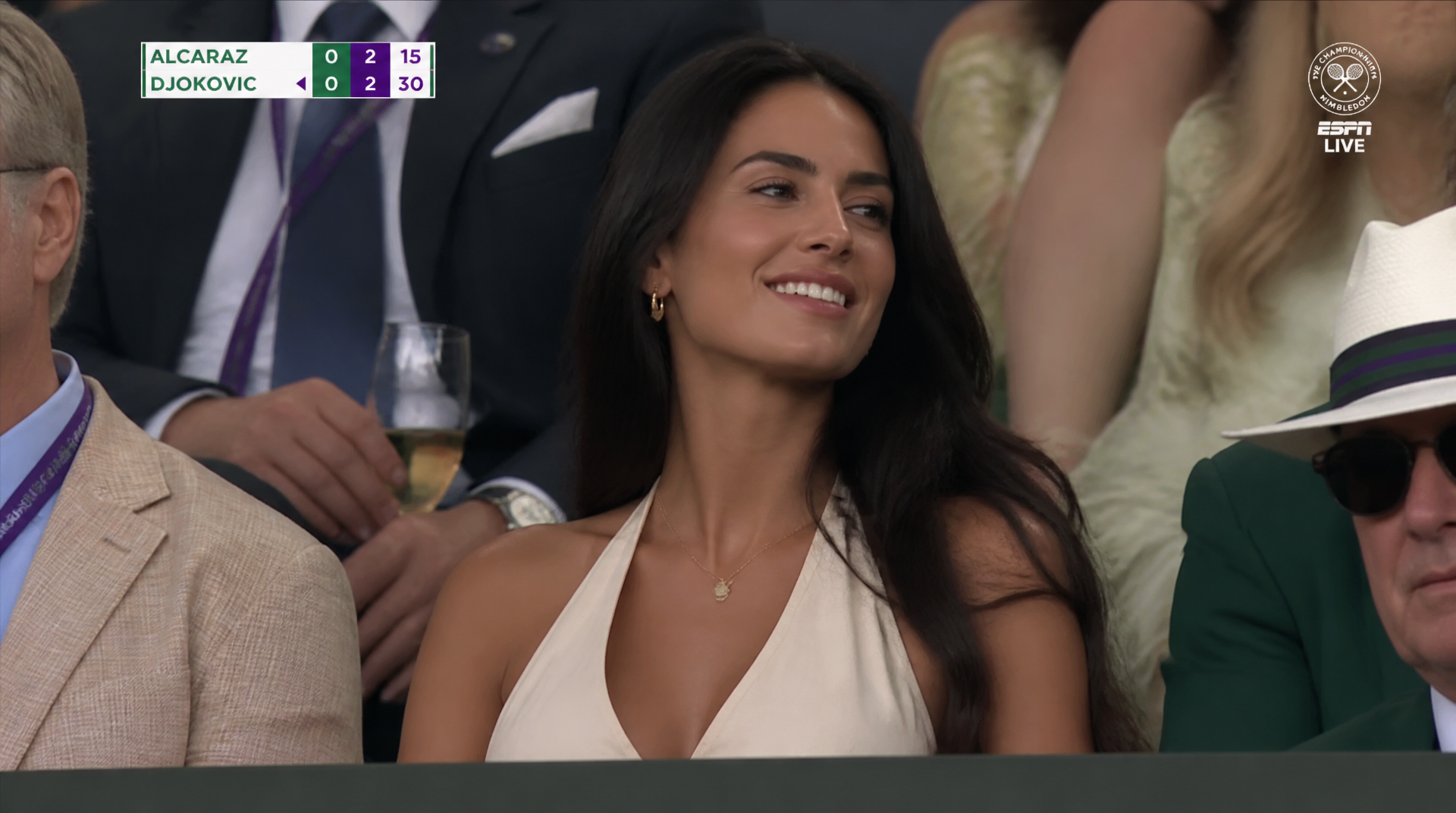
Begin without an upload. Name the subject, setting, framing, and mood.
Example prompt
“A screenshot from a live Wimbledon TV broadcast during a packed Centre Court match. The camera cuts to the audience, an unbelievably attractive woman in her 20s with long blac…”
View Full Prompt →Image to Image
Guide an edit with a reference
Upload a source image, then say what to change and what to keep recognizable.
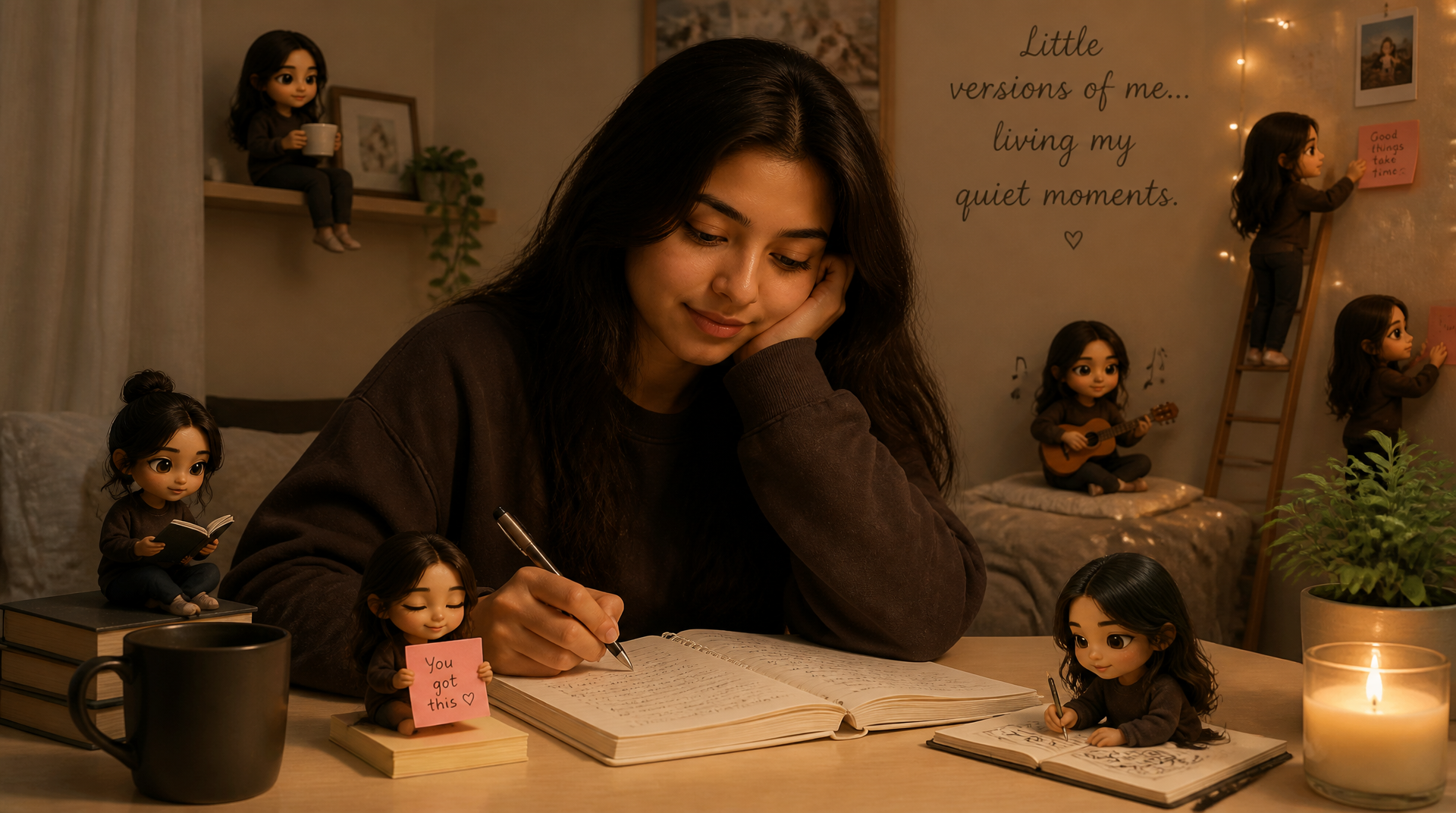
GPT Image 2 Prompt Examples
Browse the results and short previews here; each detail page has the complete prompt.
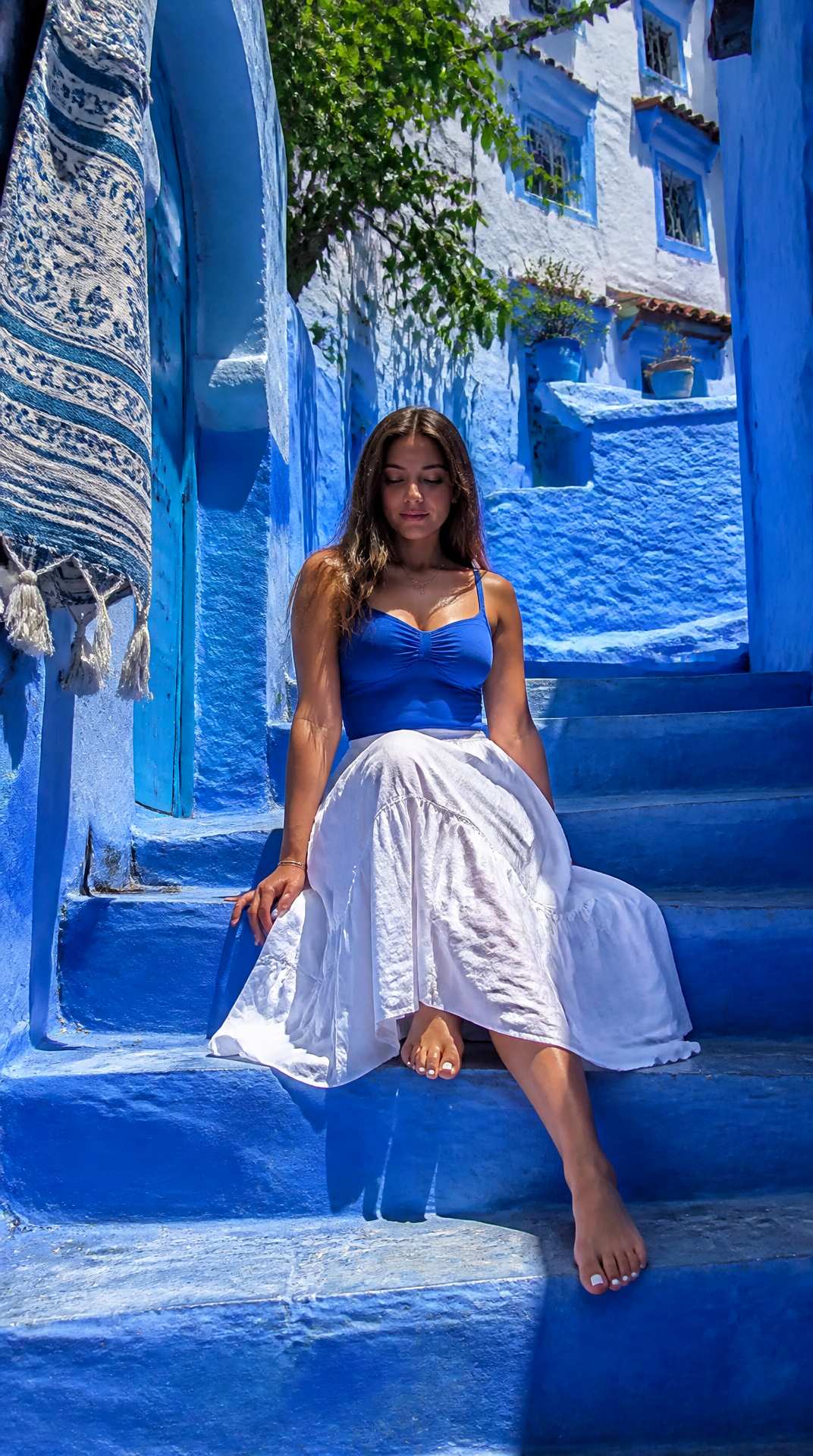
Blue Mediterranean Alley Portrait
Ultra-realistic photo of a woman seated on stone steps in a vibrant Mediterranean alley with vivid blue-painted walls, stairs, and buildings with whit…
View Full Prompt →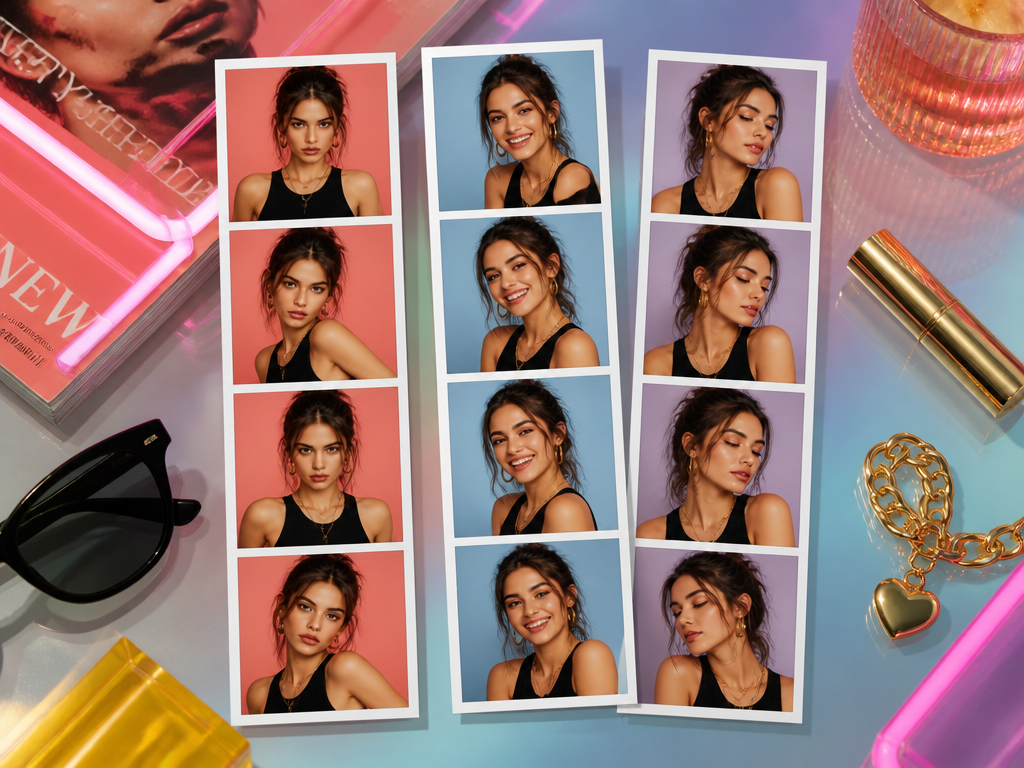
Fashion Photobooth Flat Lay
Create a stylish editorial flat-lay featuring a set of printed fashion photobooth strips arranged across a glossy pastel-tinted tabletop, photographed…
View Full Prompt →How to Get Better Results with GPT Image 2
A practical sequence for both new images and reference-guided edits.
- 01
Choose a workflow
Create from text or upload an image for a reference-guided edit.
- 02
Lead with the subject
Say what should be visually dominant before adding supporting detail.
- 03
Set the scene
Describe the environment, framing, viewpoint, and arrangement.
- 04
Choose a treatment
Specify photography, editorial, illustration, cinematic, or poster style.
- 05
Direct key details
Call out lighting, materials, colors, clothing, or typography that matter.
- 06
For edits, protect what matters
State both the requested change and what should stay recognizable.
GPT Image 2 Settings in KiwiMotion
- Workflow
- Text to Image · Image to Image
- Reference images
- 1–16 active images for edits
- Aspect ratios
- 16:9 · 9:16 · 1:1 · 4:3 · 3:4
- Quality
- Standard · Medium · High
- Output tiers
- Standard · HD · QHD · 4K
- Saved results
- Completed images in your KiwiMotion Library
View available sizes
Standard — 1024 × 1024 · Standard — 1024 × 768 · Standard — 768 × 1024 · HD — 1920 × 1080 · QHD — 2560 × 1440 · 4K — 3840 × 2160 · HD — 1080 × 1920 · QHD — 1440 × 2560 · 4K — 2160 × 3840
GPT Image 2 FAQ
What can I create with GPT Image 2?
You can create portraits, product visuals, posters, editorial concepts, cinematic scenes, social content, and other original images from prompts or reference images in KiwiMotion.
Can I generate GPT Image 2 images from text?
Yes. Select GPT Image 2 in Create Image, describe the image you want, choose the available settings, and generate without uploading a source image.
Can I use reference images with GPT Image 2?
Yes. KiwiMotion's GPT Image 2 edit workflow accepts from 1 to 16 active reference images. Only images you upload or retain in the Studio are submitted.
Can I edit an existing image?
Yes. Upload the existing image as a reference, describe the requested change, and state which subjects, objects, or composition details should remain consistent.
Which aspect ratios are available?
The current GPT Image 2 configuration supports 16:9, 9:16, 1:1, 4:3, and 3:4. Available output sizes update with the selected aspect ratio.